GA4 Migration and Session-Level Data Challenges
We are now about six months into the big GA4 migration. At this point we've settled into what we can and can't do. But there is still more discomfort than what we'd hoped for six months into a new product. One of the biggest issues is the lack of session-level information. The system was not built with sessions in mind and some may argue that's fine. But a lot of times, you want to understand how particular campaigns are working at the moment. For instance, how are your Black Friday efforts doing on, you know, Black Friday? This data is really hard to come by in GA4. But fear not — we will be tackling this issue and more in this blog.
What this blog is!
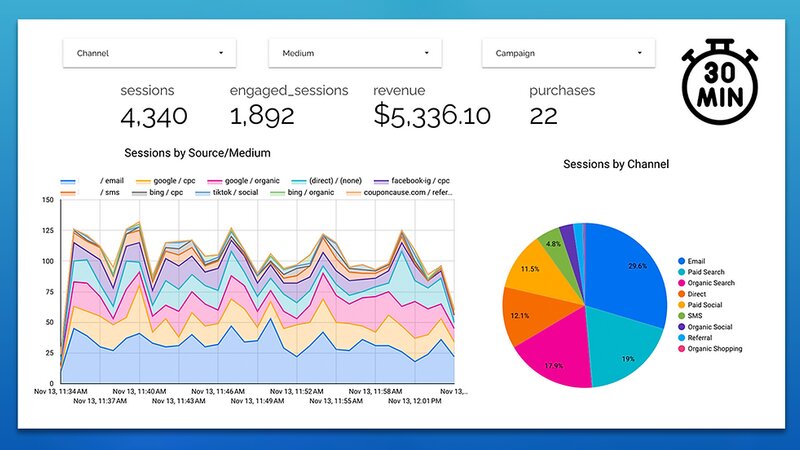
The purpose of this blog is to empower you to set up a real-time channel & campaign dashboard quickly and efficiently. This blog will equip you with 2 SQL queries that can be used to pull yesterday's data and the previous 30/60 minutes of data from GA4, and display it in a Looker Studio report.
What this blog is not!
This blog is not a comprehensive tutorial on GA4, BigQuery, or the combination of the two. This blog is a means to an end to get you up and running with a real-time dashboard. If you want to understand all of the detailed aspects of BigQuery & GA4, I'd advise taking the Simmer course led by Johan van de Werken — it's a deep dive into GA4 & BigQuery. Our approach today is to empower marketers to find a critical report that they may be missing. We'll be taking shortcuts and skipping some basic definitions. You've been warned — now let's go!
The problem with GA4 data
There are a lot of issues with GA4 but there's one that comes up time and time again. One that just causes heartbreak among so many of my clients. One that rips people's souls in half as I see them wince every time I mention it — yesterday and today's data just doesn't work properly in GA4. The data doesn't fully exist in the platform until 48 hours go by.
According to Google Analytics documentation, GA4 can take up to 48 hours to process data from your website or app. I've seen the data processing times be both fast and slow, but the fact is you can't rely on the data populating quickly. This can be a real pain-in-the-neck for all businesses, but especially for those in the ecommerce industry.
But Josh! How am I going to see how my holiday sale is performing? How can we make quick decisions to see how our campaigns are converting YoY or even DoD? Can we at least go into real time to get a gut check of how our campaigns are performing in the last 30 minutes? We just sent an email out — are people clicking it?
Real-Time Fails in GA4
Well, that's kind of complicated too. GA4 currently displays only the first touch information in real-time on an aggregate level.
So for instance if I go to our site with a UTM link, you would hope that this attribution source would at least show up somewhere in Realtime to show how many people are on the site from a specific campaign. The first thing I notice in the attribution section of Realtime is that we only have access to First User data. This is not super useful as I don't really care about how a person originally came to my website — I am interested to see why a user is there right now.
Imagine the scenario where you send out 1000 emails about your Black Friday sale and then you navigate to see how many people are on the site from the email you just sent out. Suddenly you see 99 people from an email about March Madness — not super useful, huh?
It is impossible to see what channels are driving your website traffic at this very moment in GA4's native interface. Unless… there was a way to get real-time attribution data down to almost the second. Well guess what — we can with BigQuery!
Connect GA4 to BigQuery
The first thing you'll need to do is make sure that you connect GA4 to BigQuery. Navigate to the admin section of GA4 and make sure you have an active link with BigQuery. If you haven't started setting one up yet, you'll need to create a BigQuery account and then link your GA4 project to it.
The BigQuery connection will take a day or two to start populating the data into your BigQuery project, so be patient. Additionally, it will ONLY start populating data once you have connected it — there is currently no support for retroactive GA4 data in BigQuery.
Note: You will be able to create a free link but you'll definitely want to upgrade to the paid version of BigQuery. Without upgrading to paid, you will not be able to access the export type "streaming" which we need for any type of real-time dashboard. Additionally, you won't be able to store more than two months of data at a time without upgrading.
The Belly of the BigQuery Beast
Navigate to BigQuery via the Google Cloud Console. You should see a new dataset under your project_id called analytics_{{streamid}}.
If you selected "Daily Export", "Streaming Export", & "User Data Export" in your connector, you'll see the following datasets:
- Events: Your daily repository of historical analytics data. Once a day, BigQuery takes the intraday data and "deposits" it into the events dataset.
- Events_intraday: Your "real-time" data — it displays the last 12–24 hours worth of data and continues to populate in near real-time.
- Pseudonymous_users: Shows information about the "user" in relationship to the GA4 cookie identifier (client ID). Has device, geo, and audience info tied to a single user.
- Users (if you're sending in User IDs): Same information as pseudonymous user information, listed by user ID.
For this exercise we're going to be focusing on the events_intraday dataset — the same logic can be applied to the events dataset for historical analysis.
Manipulating and Condensing the Tables
If you dive into a preview of one of those datasets you'll see A LOT of columns. The GA4/BigQuery connector gives us a lot of data to play with, but that doesn't necessarily mean we need all of it. Querying in BigQuery is what ends up costing money, and querying a large dataset like GA4 data can add up!
Additionally, some of the data is broken down into single columns that we're used to seeing as one column (i.e. Session Source & Session Medium). To get to the data we need, we have to build our own tables from the existing datasets.
Building our own dedicated table with just the information we need will:
- Make finding the data & visualizing the tables in Looker Studio way easier
- Save you quite a bit of money
- Make it more lightweight, so it's faster to update
The tool GA4SQL (by Ahmed Ali) does all the SQL work for you. There's a lot to play around with, but let's take a look at two code snippets to help us achieve the most critical marketing real-time data.
The SQL query is designed to classify and aggregate session data from an analytics dataset. It categorizes sessions into channels based on source and medium, using CASE statements to determine if the session is from: Direct, Cross-network, Paid Shopping, Paid Search, Paid Social, Paid Video, Display, Organic Shopping, Organic Social, Organic Video, Organic Search, Email, Affiliates, Referral, Audio, SMS, and Mobile Push Notifications. If none match, it defaults to 'Unassigned'.
The query then aggregates session details like campaign name, region, country, landing page, device category, and date — counting distinct sessions, summing engaged sessions, purchases, and revenue, and counting total users.
Last 30 Minutes
A few modifications are needed to the SQL query to provide correct time data and accurately pull the last 30 minutes of data:
- Update your table ID in the format:
project_ID.Dataset_ID.Table_ID - Update the UTC offset based on the time zone set in your Google Analytics account (found in Analytics under Admin → Property → Property details → Reporting Time Zone). The value should be a string like
"-08:00"or"+2:00" - Update the interval offset. This should always be a positive integer. If your time zone is ahead of UTC, change
TIMESTAMP_SUBtoTIMESTAMP_ADD
To get the last 60 min instead of 30 min
Change INTERVAL 30 MINUTE to INTERVAL 60 MINUTE in the relevant line of the query.
Once you have your code, run the SQL in BigQuery. Navigate to your GA4 events_intraday dataset and open a query tab. Paste the code and make sure to swap out the dataset ID with your own. You can save your BigQuery copy as a view for easy reuse.
In the top right it will also tell you how large the file is. This is what you use to determine the cost of querying the dashboard every minute. A 95MB query run every minute for a month totals about 4.1 TB — roughly $18/month according to Google Cloud Platform Pricing. Manageable, and a sense of the importance of good query consolidation.
Add Real-Time Data to Looker Studio
Copy Our Template
You can either create a new report from scratch or use the BigQuery Realtime Dashboard Template. To use it, click the 3-dot menu in the top right and select "Make a copy." You'll be prompted to select a new data source — click the dropdown under "New Data Source" and select "Create Data Source."
Build Your Own
Navigate to Looker Studio and add a new data source. Search for the BigQuery connector and select it. Find your project ID and you should have your newly created views in the list to choose from.
Customize Your Report For Real-Time
Pick the Real Time Table View that you'd like to use. An important step before moving on is to change the data freshness on the data source. This controls how often the data refreshes from BigQuery (i.e. how often it re-runs the SQL request).
- For the 30-min dashboard: set data freshness to every 1 minute
- For the hourly dashboard: once an hour or once every 15 minutes is fine
Remember — the faster it updates, the more you'll pay. Balance freshness against cost based on your use case.
A few notes about the data:
- Sometimes there are null values in the data that correct themselves later on — you can filter them out if you'd like.
- A time series chart will restart at the beginning even though it's after the event. There's a SQL solve for this too.
All in all this is a complex way to get real-time marketing data. While fundamentally powerful — because the data is yours and at your fingertips — you may want to find a simpler solution like Piwik Pro or another alternative, which does not have the same data lag.
Additional Modifications: Last Day of Data Pulled by Hour
Some edits must be made to the SQL query to provide the correct time data, and accurately pull the last 24 hours of data from your source:
- Update your table ID in the format:
project_ID.Dataset_ID.Table_ID - Update the UTC offset based on the time zone set in your GA4 account (Admin → Property → Property details → Reporting Time Zone)
- Update the interval offset — this should always be a positive integer. If your timezone is ahead of UTC, switch
TIMESTAMP_SUBtoTIMESTAMP_ADD
The key takeaway: BigQuery unlocks the real-time data that GA4's native interface simply can't provide. For ecommerce and high-velocity campaigns, this setup is worth every penny.